Make your Steam account public
Your game library must be public for the analysis to work. Set it up in a few steps.
SteamPersona only reads data from Steam's public Web API. If your profile or game details are private, we can't access your library or generate an analysis.
- 1
Go to your profile
In the Steam client or your browser, click your username at the top right and open "Profile".
- 2
Click Edit Profile
On your profile page, click "Edit Profile", then switch to the "Privacy Settings" tab.
- 3
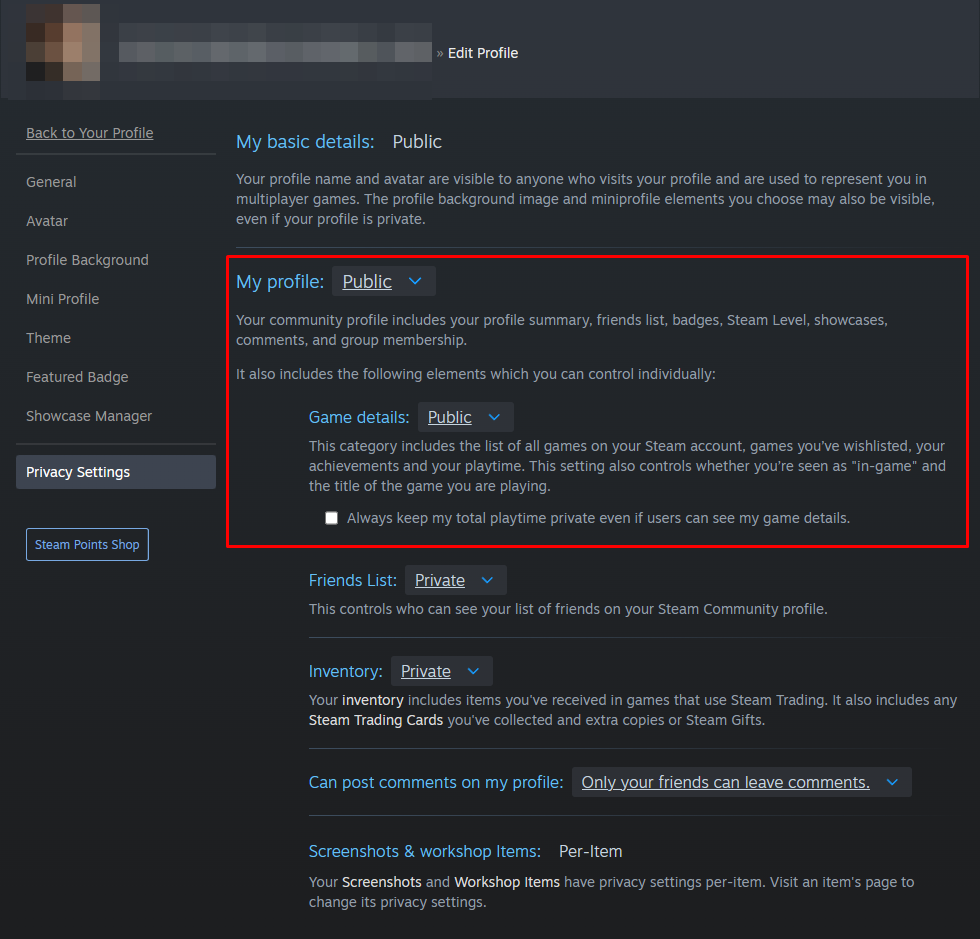
Set "My profile" to Public
Under privacy settings, set the "My profile" option to "Public".
- 4
Set "Game details" to Public
The most important step: also set "Game details" to "Public", so your library and playtime can be read.
- 5
Don't hide total playtime
Uncheck the "Always keep my total playtime private" box.
- 6
Changes save automatically
Steam saves settings instantly. Head back to SteamPersona and analyze your profile.
Important: After you make your settings public, it takes about 5 minutes to propagate to Steam's Web API. If the analysis reports a "private profile" error, wait a few minutes and try again.
You can revert your privacy settings anytime. The analysis only reads public data at the moment it runs — we don't keep persistent access.